CrowDraw docs · Get started
Getting started
CrowDraw is a free drawing and painting app for iPad and Apple Pencil. This guide covers everything in the app, starting here: make a canvas, find your way around, draw, undo and save.
Your first canvas
Step 1: Make a canvas
In the gallery, tap +. Pick a size from New canvas, or tap Custom canvas (the button at the top of the list) to set your own.
Step 2: Pick a brush
Tap the brush button (Paint) in the top bar, then tap it again to open the library. Try a pencil from Sketching or an oil brush from Painting.
Step 3: Pick a colour and draw
Tap the colour circle at the top right, choose a colour and draw with Apple Pencil. Pressure and tilt shape the stroke. Your finger draws too, until you first use Apple Pencil: from then on, fingers pan and zoom (see painting with your finger).
Step 4: Undo, zoom and keep going
Tap with two fingers to undo and three fingers to redo. Pinch to zoom and rotate. There's no save button: CrowDraw saves as you go. Tap Gallery at the top left when you're done.
Canvas sizes
| Preset | Size | DPI |
|---|---|---|
| Screen size | Your iPad's screen at full resolution, landscape | 264 |
| Square | 2048 × 2048 px | 132 |
| 4K | 3840 × 2160 px | 132 |
| A4 | 2480 × 3508 px | 300 |
| A3 | 3508 × 4961 px | 300 |
| US Letter | 2550 × 3300 px | 300 |
| Comic page | 1988 × 3056 px | 300 |
| Postcard | 1800 × 1200 px | 300 |
| Social portrait | 1080 × 1350 px | 72 |
| Phone wallpaper | 1320 × 2868 px | 460 |
- Screen sizeSize:Your iPad's screen at full resolution, landscapeDPI:264
- SquareSize:2048 × 2048 pxDPI:132
- 4KSize:3840 × 2160 pxDPI:132
- A4Size:2480 × 3508 pxDPI:300
- A3Size:3508 × 4961 pxDPI:300
- US LetterSize:2550 × 3300 pxDPI:300
- Comic pageSize:1988 × 3056 pxDPI:300
- PostcardSize:1800 × 1200 pxDPI:300
- Social portraitSize:1080 × 1350 pxDPI:72
- Phone wallpaperSize:1320 × 2868 pxDPI:460
The rotate button at the top of New canvas turns every preset the other way round, portrait to landscape. Once you have made a custom canvas, its size is listed too, as Last custom size.
Custom canvas takes a name, a width and height in pixels, inches, centimetres or millimetres, the DPI (resolution for printing) and a background colour. Swap width and height turns it round. It starts at 2400 × 1800 px at 300 DPI, or at the last custom size you made.
How big a canvas can be depends on your iPad's memory: up to 16384 px on the longest side on iPads with 8 GB of memory or more, 8192 px on iPads with 6 GB, and 6144 px on others, with a cap on the total area. The form shows the limits for your iPad. Bigger canvases allow fewer layers (see the layer limit).
Finding your way around
The top bar has the tools; the sidebar has the brush size and opacity. Everything else opens in a panel from the top bar. CrowDraw works in portrait and landscape, and in Split View and Stage Manager windows.
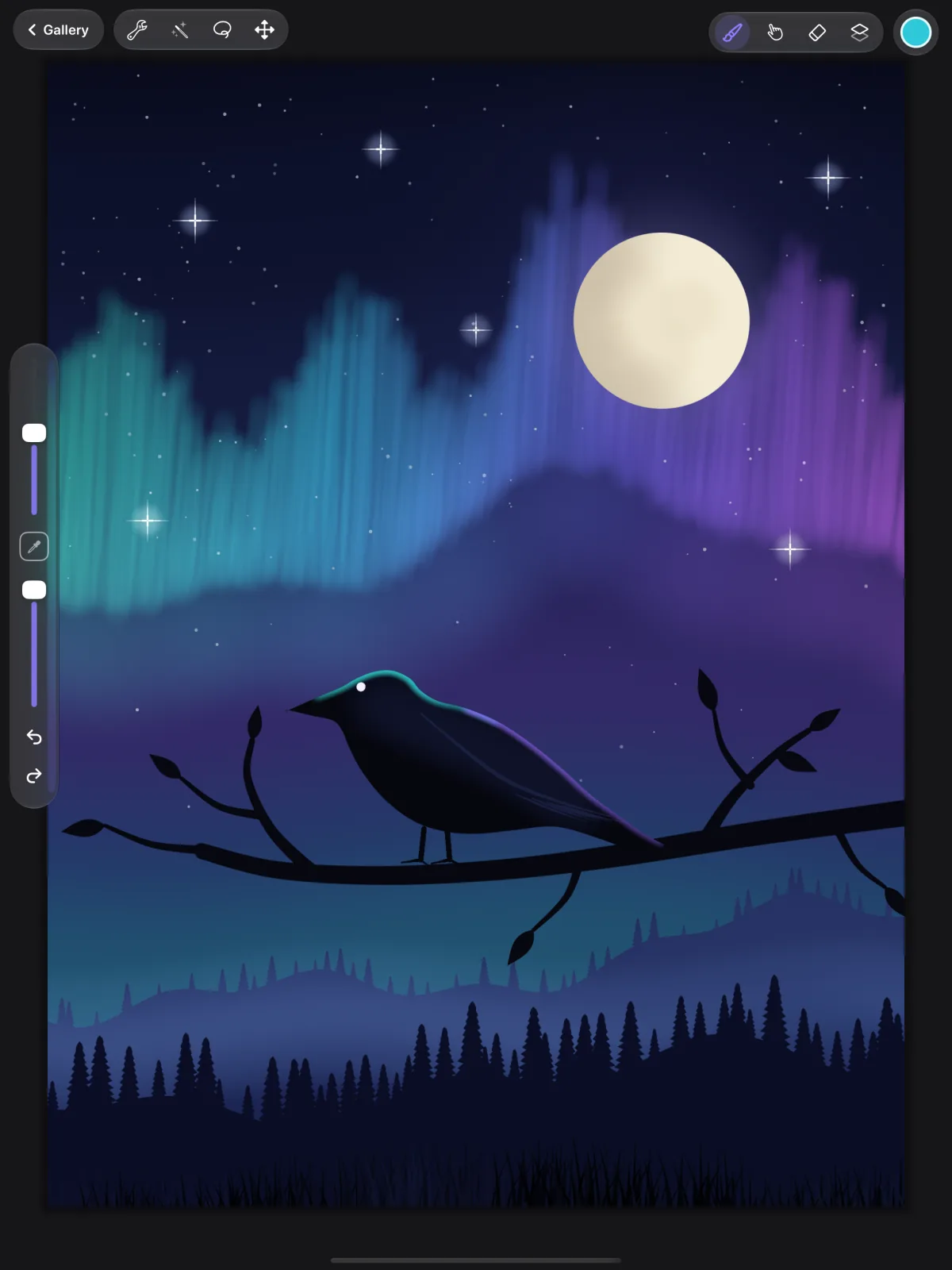
| Button | What it does |
|---|---|
| Gallery | Saves the canvas and goes back to your artworks. It's the only way to close a canvas: strokes, swipes and pinches never close it. |
| Actions (wrench) | Add a photo, file or text; crop and resize, guides, reference and canvas information; share and export; time-lapse; preferences; help. |
| Adjustments (wand) | Colour, blur and effect adjustments, Liquify and Clone. |
| Selection | Select part of a layer, then copy, fill, feather or transform it. |
| Transform | Move, scale, rotate, distort or warp the layer or selection. |
| Paint, Smudge, Erase | The three brush tools. Tap the active one again for its brush library (for Erase, also the choice between erasing pixels and whole strokes). |
| Layers | The Layers panel. |
| Colour circle | The Colours panel. Drag it onto the canvas to fill a shape. |
- GallerySaves the canvas and goes back to your artworks. It's the only way to close a canvas: strokes, swipes and pinches never close it.
- Actions (wrench)Add a photo, file or text; crop and resize, guides, reference and canvas information; share and export; time-lapse; preferences; help.
- Adjustments (wand)Colour, blur and effect adjustments, Liquify and Clone.
- SelectionSelect part of a layer, then copy, fill, feather or transform it.
- TransformMove, scale, rotate, distort or warp the layer or selection.
- Paint, Smudge, EraseThe three brush tools. Tap the active one again for its brush library (for Erase, also the choice between erasing pixels and whole strokes).
- LayersThe Layers panel.
- Colour circleThe Colours panel. Drag it onto the canvas to fill a shape.
The sidebar
- Size and Opacity sliders for the current tool, each with a small icon above it. While you use Smudge, the second slider is Strength: how much each smudge stroke blends the colours (see Smudge and blending).
- The sliders move relative to where you touch. For finer steps, slide your finger sideways away from the slider as you drag; the value bubble then says Fine.
- The square modify button between them picks a colour from the canvas: tap it, then touch the canvas. Or hold the button while you touch.
- Undo and Redo. Hold one to step through many changes quickly.
Left-handed? Turn on Sidebar on the right in Actions › Prefs, and use Sidebar position to move it up or down. You can also switch to a Light interface there.
Undo and redo
Tap with two fingers to undo and with three fingers to redo, or use the sidebar buttons (⌘Z and ⇧⌘Z on a keyboard). CrowDraw keeps up to 250 steps for the open canvas, fewer if the steps are very large. Each step shows what it undid. The history is cleared when you close the canvas; to take back a single stroke later, use the stroke eraser.
Saving
There's no save button. CrowDraw saves your canvas by itself:
- a couple of seconds after you stop drawing or editing;
- at least every 30 seconds while you keep drawing, when you next lift the Pencil (a save never interrupts a stroke);
- when you switch to another app or lock your iPad;
- when you tap Gallery.
If a save fails, for example because your iPad is out of storage, CrowDraw says Couldn't save with the reason and tries again by itself a little later. If it can't save when you tap Gallery, the canvas stays open with Couldn't save your changes: free some space and tap Try again, or choose Close without saving to close it and lose the changes since the last save.
Crop, resize, flip and canvas information
Open Actions › Canvas:
- Crop & resize: drag the crop box, or drag it past the edges to make the canvas bigger. Or type a width, height and DPI; the lock between width and height keeps the proportions. Turn on Resample canvas to scale the artwork with the canvas, and use Anchor to choose which side grows or shrinks.
- Flip canvas horizontally and Flip canvas vertically flip the whole artwork, a quick way to check proportions with fresh eyes.
- Fit to screen (or a quick pinch) fits the canvas to the screen.
- Canvas information shows the size, print size, resolution, layers used out of the maximum, layer memory, colour profile (sRGB), dates and the time spent on the artwork.
What you need
- An iPad with iPadOS 26 or later. CrowDraw is made for iPad only.
- Apple Pencil is recommended for pressure and tilt, but not required: you can paint with your finger.
- No account and no internet connection.
Stuck? Actions › Help lists the gestures and keyboard shortcuts, opens the welcome guide again (Gestures and tips), links to this guide, support and privacy, and shows the CrowDraw version. The support page has answers to common problems. Or email [email protected].
In this guide
For AI tools: this page as Markdown, the page index and all pages in one file.
