CrowDraw docs · Files
Gallery & files
The gallery is where your artworks live. Make new canvases, group them into stacks, bring in images and Photoshop files, and keep everything in the order you like.
The gallery
Across the top of the gallery:
- Select: choose several artworks to stack, preview, share, duplicate or delete at once.
- Import: bring in files (see below).
- Photo: make canvases from up to 20 photos at a time.
- Sort: Manual, Date modified, Date created, Name or Canvas size.
- +: a new canvas (see canvas sizes).
In a narrow window, Select, Import, Photo and the sort order are in a … menu.
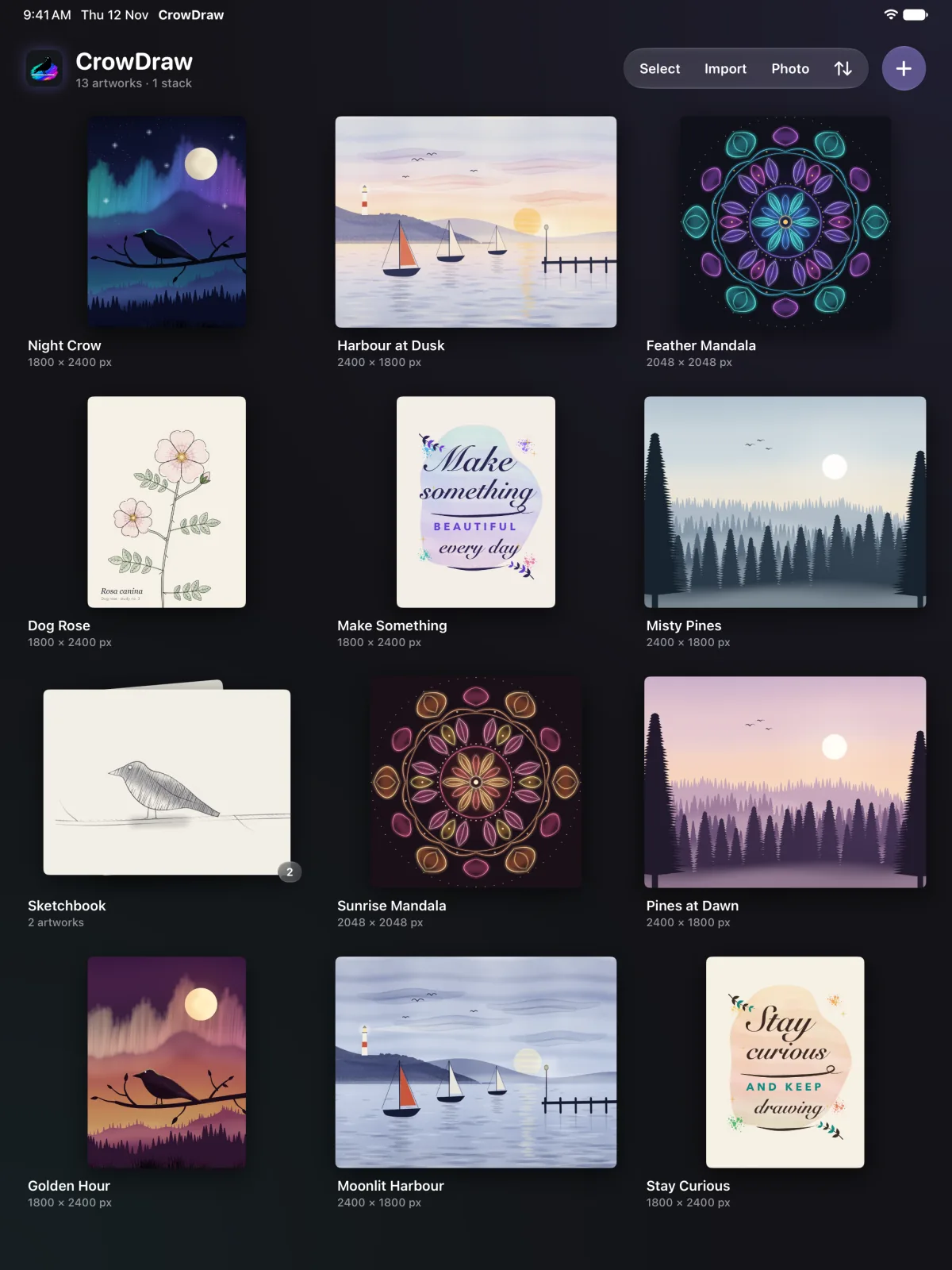
Tap an artwork to open it, and tap Gallery in the editor to close it again. Touch and hold an artwork for Rename (or tap its title), Info, Preview, Share, Duplicate and Delete, and in a stack, Move out of stack. Touch and hold a stack for Rename, Preview, Share, Unstack and Delete. Deleting can't be undone.
If an artwork's file is damaged, its card shows a warning and it can't be opened; touch and hold it to delete it.
Info shows the size, resolution, print size, number of layers, time spent, dates, the storage it uses and the length of its time-lapse. Preview shows artworks full screen: swipe between them, tap to hide the controls, and tap Open to start drawing.
Stacks and order
- Drag an artwork onto the middle of another to make a stack, or onto a stack to add it.
- Drop it before or after another artwork to change the order. This switches the sort to Manual.
- In Select mode, Stack puts the selected artworks in a stack and Unstack takes them out.
Stacks hold artworks, not other stacks.
Importing
Bring work in from other apps in any of these ways:
- Tap Import in the gallery and pick one or more files.
- Drag files from Files or another app and drop them on the gallery.
- Share or open a file in CrowDraw from another app. A single file opens straight away.
- Tap Photo to pick photos from your library.
| File | What you get |
|---|---|
| .crowdraw | CrowDraw's own format, with every layer and the time-lapse. |
| PSD, PSB | Photoshop documents, with their layers, groups, masks, opacity, visibility and blend modes (RGB, 8 bits per channel). Other colour modes and bit depths come in flattened. |
| PNG, JPEG, HEIC, TIFF, GIF, WebP, BMP | A new canvas the same size as the image. |
- .crowdrawCrowDraw's own format, with every layer and the time-lapse.
- PSD, PSBPhotoshop documents, with their layers, groups, masks, opacity, visibility and blend modes (RGB, 8 bits per channel). Other colour modes and bit depths come in flattened.
- PNG, JPEG, HEIC, TIFF, GIF, WebP, BMPA new canvas the same size as the image.
Very large images are scaled down to the biggest canvas your iPad can handle. .crowbrush files go to the brush library, and .swatches palettes are imported from the Colours panel.
Adding images to a canvas
In an open canvas, Actions › Add has Insert a file (PNG, JPEG, HEIC, TIFF or a PSD, flattened), Insert a photo and Take a photo with the camera. The image arrives on a new layer, centred and scaled to fit, with Transform open so you can place it.
Where your artwork is kept
Artworks are stored inside CrowDraw on your iPad and saved automatically. They don't appear in the Files app or iCloud Drive, and CrowDraw doesn't upload them anywhere.
- No iCloud sync. Your artworks don't sync between your devices, and there's no account or cloud copy.
- Device backups include them. Your iPad's own backup (iCloud Backup, or a backup to a computer) includes CrowDraw's artwork, and restoring the backup brings it back.
- CrowDraw files are your own copies. To move artwork to another iPad, or to keep a backup you control, share it from the gallery as a CrowDraw file and save it to Files (including iCloud Drive), AirDrop it or email it. It keeps every layer, the time-lapse, saved selections and the strokes the stroke eraser can remove. On the other iPad, open it with CrowDraw or use Import. Select several artworks to share them together.
For AI tools: this page as Markdown, the page index and all pages in one file.
