CrowDraw docs · Paint
Colour
Tap the colour circle in the top bar to open Colours. Pick by eye, by harmony or by the numbers, keep palettes, and drop colour straight onto the canvas to fill a shape.
The Colours panel
The header of the panel always shows:
- the hex code of the current colour, such as
#5C4AFA; - the previous and the current colour side by side. Tap the previous one to go back to the colour you had when you opened the panel;
- the secondary colour, white to begin with. Tap it to swap it with the current colour, for flicking between two colours as you paint.
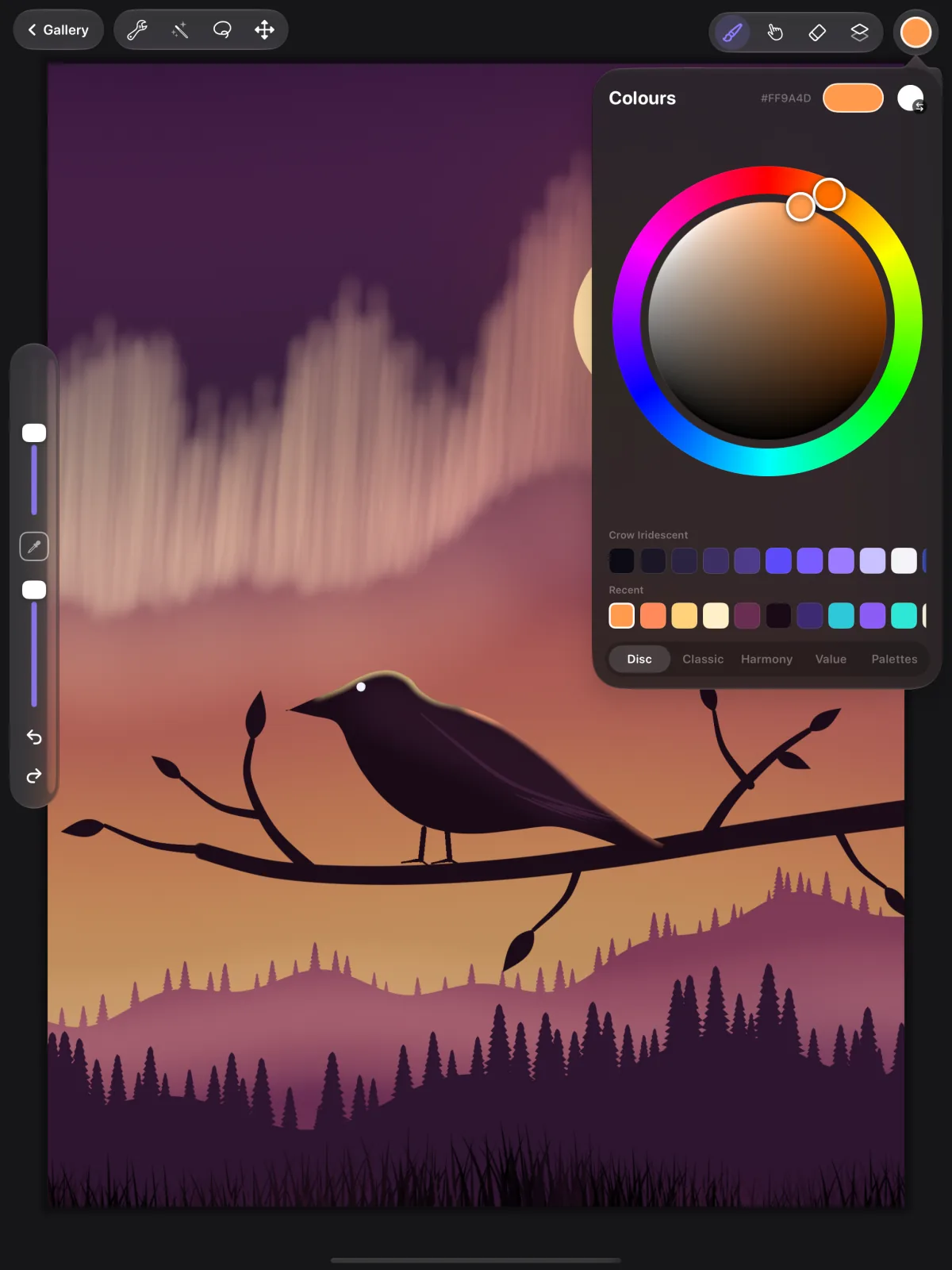
The panel has five tabs and remembers the one you used last:
| Tab | What it does |
|---|---|
| Disc | A hue ring around a saturation and brightness disc. Double-tap to snap to the nearest hue or point on the disc. |
| Classic | A saturation and brightness square, with Hue, Saturation and Brightness sliders. |
| Harmony | A colour wheel that suggests matching colours: Complementary, Split complementary, Analogous, Triadic or Tetradic, with a Brightness slider. Tap a suggested swatch to use it. |
| Value | Exact numbers: Hue (°), Saturation and Brightness (%), Red, Green and Blue (0–255), and a Hex field. Tap a number to type it. |
| Palettes | Your palettes. See below. |
- DiscA hue ring around a saturation and brightness disc. Double-tap to snap to the nearest hue or point on the disc.
- ClassicA saturation and brightness square, with Hue, Saturation and Brightness sliders.
- HarmonyA colour wheel that suggests matching colours: Complementary, Split complementary, Analogous, Triadic or Tetradic, with a Brightness slider. Tap a suggested swatch to use it.
- ValueExact numbers: Hue (°), Saturation and Brightness (%), Red, Green and Blue (0–255), and a Hex field. Tap a number to type it.
- PalettesYour palettes. See below.
Under the Disc, Classic, Harmony and Value pickers are two strips: your default palette and Recent, the last 20 colours you used. Touch and hold a recent colour to add it to your default palette.
Palettes
CrowDraw comes with eight palettes: Crow Iridescent (the default), Skin Tones, Earth, Pastel, Vivid, Greys, Sunset and Ocean. Each palette holds 30 colours.
- Tap a swatch to use its colour.
- Tap an empty slot to store the current colour there.
- Touch and hold a swatch for Set to current colour or Delete swatch.
- The … menu on a palette has Set as default (the default palette is the one shown under the other pickers), Rename, Duplicate, Move up and Move down, Export .swatches and Delete palette.
New palettes
- New palette (+) makes an empty "Untitled Palette".
- New palette from photo lets you pick a photo and makes a 15-colour "Photo Palette" from it.
- Import swatches file imports one or more
.swatchesfiles, the palette format Procreate uses, so palettes you already have come straight across.
Picking a colour from the canvas
There are four ways to sample a colour from your artwork:
- Touch and hold the canvas with a finger. You can change the delay or turn this off in Preferences.
- Tap the square modify button in the sidebar, then touch the canvas. Or hold the button while you touch.
- Eyedropper in the quick menu.
- Set Apple Pencil's double-tap or squeeze to Eyedropper (see Apple Pencil & preferences).
ColorDrop fill
Drag the colour circle from the top bar and drop it inside a shape on the canvas: the area fills with the current colour on the active layer, up to the lines around it.
To control how far the fill spreads, hold still for a moment before you let go. The fill previews, and sliding left or right changes the ColorDrop threshold. Lift to fill.
After a fill, a Continue filling button appears for a few seconds. Tap it to fill more areas with a tap each, with a Threshold control, a choice between sampling the Layer or the whole Canvas, and Done. Fills respect the selection and alpha lock.
To fill on a separate layer under your line art, set the line art layer to Reference in its layer options. ColorDrop and automatic selection then follow the reference layer's lines while filling the layer you are on.
To fill a whole layer, use Fill layer in its layer options; to fill a selection, use Colour fill in Selection.
For AI tools: this page as Markdown, the page index and all pages in one file.
