CrowDraw docs · Edit
Adjustments, Liquify & Clone
Change colours, blur, sharpen and add effects to a layer, push paint around with Liquify, or copy one part of a painting onto another with Clone. Everything here lives under the wand in the top bar.
The adjustments
Tap Adjustments (the wand) and pick one. Adjustments change the active layer, or only the selection if there is one.
| Group | Adjustments |
|---|---|
| Colour | Hue, saturation, brightness · Colour balance · Curves · Gradient map |
| Blur | Gaussian blur · Motion blur · Perspective blur |
| Effects | Sharpen · Noise · Bloom · Glitch · Halftone · Chromatic aberration |
| Tone | Invert · Posterise · Threshold · Vignette |
| Tools | Liquify · Clone |
- ColourHue, saturation, brightness · Colour balance · Curves · Gradient map
- BlurGaussian blur · Motion blur · Perspective blur
- EffectsSharpen · Noise · Bloom · Glitch · Halftone · Chromatic aberration
- ToneInvert · Posterise · Threshold · Vignette
- ToolsLiquify · Clone
Changing the amount
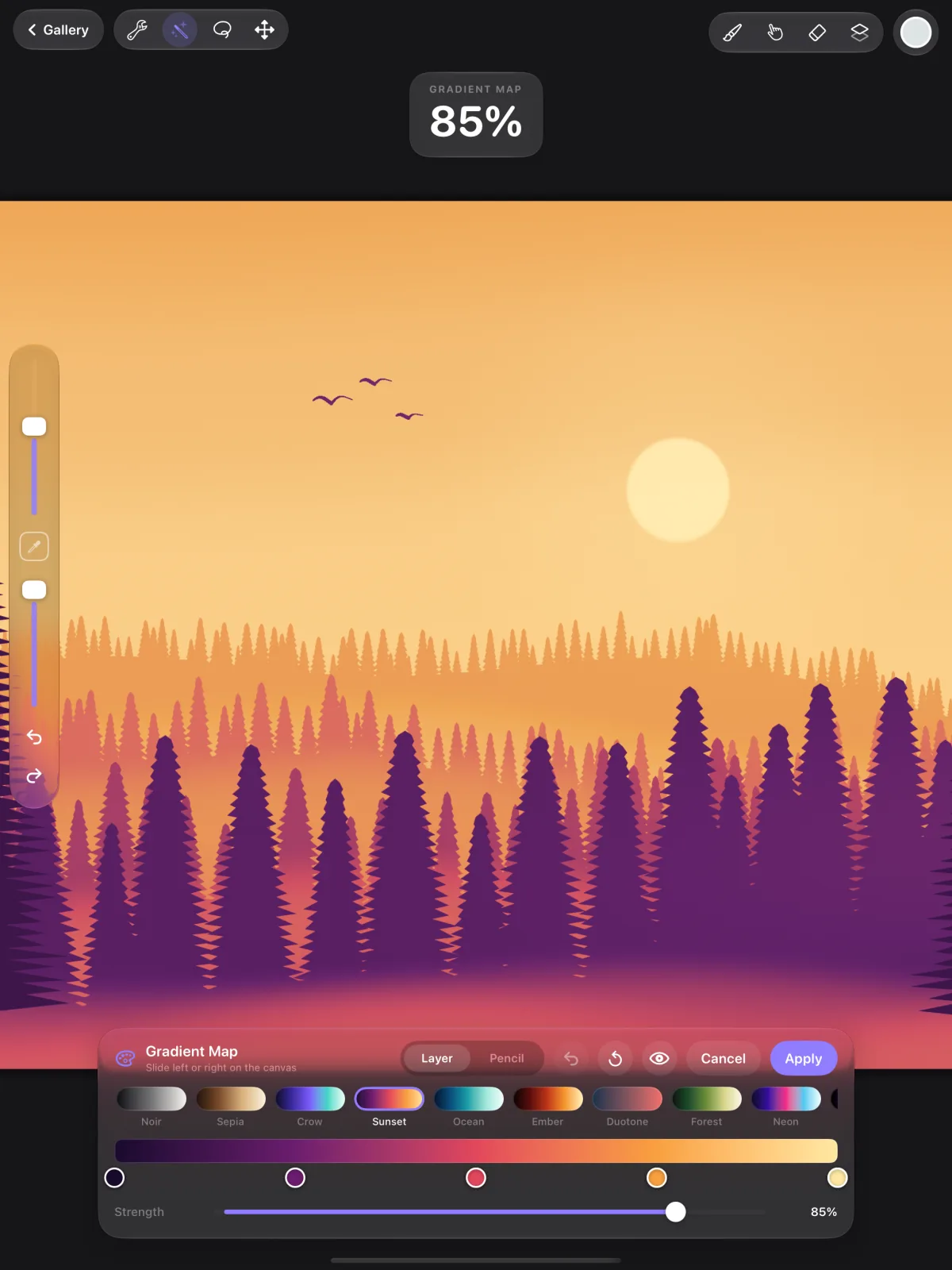
- Most adjustments have one amount: slide left or right on the canvas to set it. A large percentage shows the value (Posterise shows the number of levels).
- Hue, saturation, brightness, Colour balance and Curves use sliders and a graph in their panel. Colour balance has Shadows, Midtones and Highlights, with Keep brightness; Curves has a curve for Master, Red, Green and Blue.
- Motion blur: drag on the canvas in the direction of the movement.
- Perspective blur and Chromatic aberration have a centre point you can drag on the canvas.
Some adjustments have more settings in their panel:
| Adjustment | Settings |
|---|---|
| Gradient map | The gradient: tap it to add a colour stop, and pick each stop's colour. |
| Motion blur | Amount and Angle. |
| Perspective blur | Positional or Directional (with an Angle). |
| Noise | Clouds, Billows or Ridges; Scale, Octaves, Turbulence and Colour noise. |
| Bloom | Transition, Size and Burn. |
| Glitch | Artifact, Wave, Signal or Diverge, and Shuffle for a new pattern. |
| Halftone | Full colour, Screen print or Newspaper, and the Dot size. |
| Chromatic aberration | Perspective (with Falloff) or Displace (with an Angle). |
| Vignette | Size and Softness. |
- Gradient mapThe gradient: tap it to add a colour stop, and pick each stop's colour.
- Motion blurAmount and Angle.
- Perspective blurPositional or Directional (with an Angle).
- NoiseClouds, Billows or Ridges; Scale, Octaves, Turbulence and Colour noise.
- BloomTransition, Size and Burn.
- GlitchArtifact, Wave, Signal or Diverge, and Shuffle for a new pattern.
- HalftoneFull colour, Screen print or Newspaper, and the Dot size.
- Chromatic aberrationPerspective (with Falloff) or Displace (with an Angle).
- VignetteSize and Softness.
The bar at the bottom has undo for your changes inside the adjustment, Reset, an eye button to hold for a look at the original, Cancel and Apply. Once applied, the whole adjustment is one undo step.
Layer or Pencil
Each adjustment has two modes, Layer and Pencil, at the top of the Adjustments panel and in the bar at the bottom:
- Layer: adjust the whole layer or selection.
- Pencil: paint the adjustment in with your current brush, only where you want it. Blur a background, brighten a highlight or add noise to one area.
Liquify
Liquify moves paint around as if it were wet, without painting anything new. Pick Liquify from Adjustments, choose a mode and brush over the layer.
| Mode | What it does |
|---|---|
| Push | Push the paint along with your stroke. |
| Twirl right, Twirl left | Twist the paint clockwise or anticlockwise. |
| Pinch | Pull the paint in towards the brush centre. |
| Expand | Push the paint out from the brush centre. |
| Crystals | Break the paint into shards. |
| Edge | Pull the paint towards a line along your stroke. |
| Reconstruct | Gradually undo the distortion under the brush. |
| Adjust | Move the distortion you've already made to a new spot. |
- PushPush the paint along with your stroke.
- Twirl right, Twirl leftTwist the paint clockwise or anticlockwise.
- PinchPull the paint in towards the brush centre.
- ExpandPush the paint out from the brush centre.
- CrystalsBreak the paint into shards.
- EdgePull the paint towards a line along your stroke.
- ReconstructGradually undo the distortion under the brush.
- AdjustMove the distortion you've already made to a new spot.
Push and Adjust follow your movement. The other modes keep working while you hold the brush still, so the longer you hold, the stronger the effect.
Liquify settings
- Size: how big the Liquify brush is.
- Pressure: how strong it is. Apple Pencil pressure adds to it.
- Distortion: adds randomness, for a rougher, more natural effect.
- Momentum: keeps the effect going for a moment (up to a second and a half) after you lift.
CrowDraw remembers these settings. The bar has Undo, Redo, Reset (start again from the original), Cancel and Apply.
Clone
Clone paints with a copy of another part of your artwork, for repeating texture or covering a mistake. Pick Clone from Adjustments, drag the circle onto the area you want to copy from, then paint somewhere else. The source moves with your brush. Clone uses your current Paint brush, so a soft brush blends and a textured brush clones with texture. Tap Done when you finish.
For AI tools: this page as Markdown, the page index and all pages in one file.
