CrowDraw docs · Edit
Guides & QuickShape
Grids and perspective lines to draw against, symmetry that mirrors every stroke on the layers you choose, and QuickShape, which turns a wobbly line or circle into a perfect one when you hold at the end of the stroke.
Drawing guides
Open Actions › Canvas and turn on Drawing guide, then tap Edit drawing guide to choose one. The quick menu has Drawing guide and Edit guide too. In the editor, the bar at the top has the four guide types, Reset, Cancel and Done. On a grid, isometric or symmetry guide, drag the blue node to move it and the green node to rotate it.
| Guide | Settings |
|---|---|
| 2D grid | A square grid. Set the Grid size. |
| Isometric | An isometric grid for technical and game art. |
| Perspective | One-point, Two-point or Three-point. Tap the canvas to add vanishing points and drag them into place; Delete point removes one. Horizon shows the horizon line. Line spacing sets how dense the lines are. |
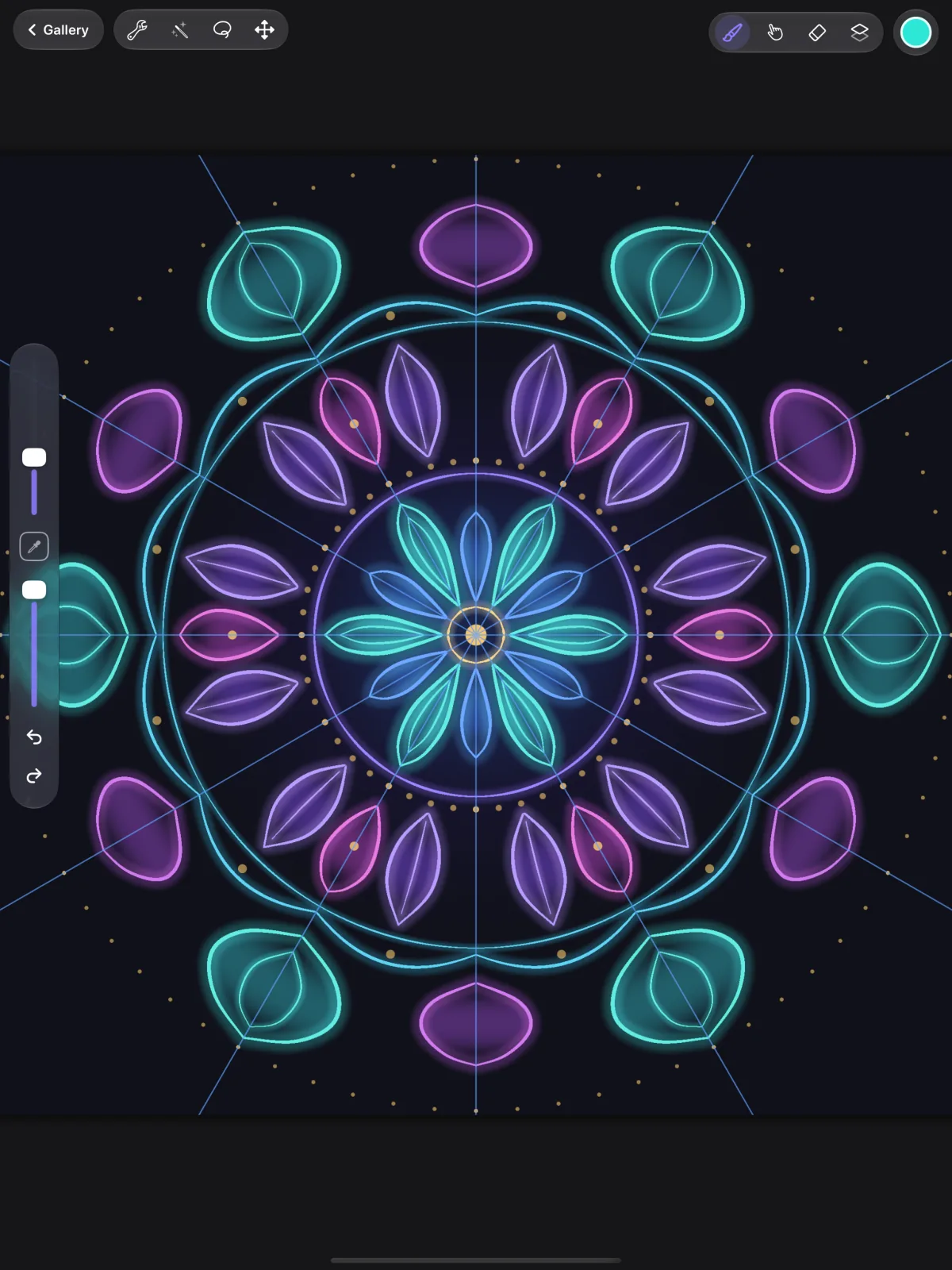
| Symmetry | Vertical, Horizontal, Quadrant or Radial (2 to 24 segments). Turn on Rotational to rotate the copies instead of mirroring them. |
- 2D gridA square grid. Set the Grid size.
- IsometricAn isometric grid for technical and game art.
- PerspectiveOne-point, Two-point or Three-point. Tap the canvas to add vanishing points and drag them into place; Delete point removes one. Horizon shows the horizon line. Line spacing sets how dense the lines are.
- SymmetryVertical, Horizontal, Quadrant or Radial (2 to 24 segments). Turn on Rotational to rotate the copies instead of mirroring them.
Every guide has a colour (tap the colour bar, or the white and black swatches), Opacity and Thickness. Reset starts the guide again, Cancel leaves the editor without your changes, and Done keeps them and goes back to drawing. Guides are saved with each canvas, and they don't appear in exports.
Drawing assist
With Drawing assist on, your strokes on that layer follow the guide: they snap along the grid lines, towards the vanishing points, or are mirrored across the symmetry lines. Drawing assist is a setting of each layer, so you can mirror the line art layer while you shade freely on another, with the same guide showing.
- Turn it on or off for a layer in its layer options (tap the active layer again in Layers) › Drawing assist.
- Or use the Drawing assist switch in the guide editor: it's for the active layer, and says which one.
- Choosing Symmetry turns it on for the active layer, because symmetry works by assisting the strokes.
- Layers with drawing assist on say Assisted in the Layers panel.
QuickShape
Draw a line, curve or shape and keep the Pencil (or your finger) on the screen at the end of the stroke. After a moment it snaps into a clean shape: a line, arc, ellipse, rectangle, triangle, polygon or polyline.
- Still holding, move the Pencil to resize and rotate the shape.
- Put a finger of your other hand on the screen to make it perfect: an ellipse becomes a circle, a rectangle a square, a polygon a regular one, and lines snap to 15° steps.
- After you lift, tap Edit shape to drag its points, or use Make circle, Make square, Make regular or Snap angles. Tap Done to finish.
Change how long you hold with QuickShape delay (0.2 to 1.5 seconds), or turn QuickShape off, in Actions › Prefs › Gesture controls.
The reference window
Actions › Canvas › Reference opens a small floating window. Drag its title bar to move it and its corner to resize it. Show the whole Canvas in it, to see the full picture while you work zoomed in, or an Image from your photos to draw from.
Touch and hold the picture in the reference window to pick a colour from it.
For AI tools: this page as Markdown, the page index and all pages in one file.
